
To get started, select the Create VidGuide button in the upper left corner of your browser.

The first time you click this button, you will see a pop-up from your browser asking you for permission to use your microphone camera. Select allow for both, as this is necessary to capture a VidGuide recording.
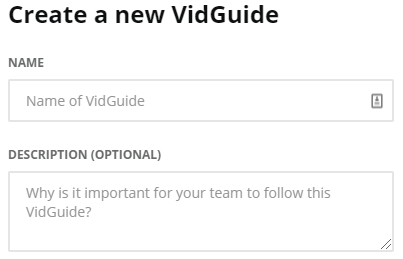
Once that’s completed, the first step is to give your VidGuide a name that describes the task you are trying to have done right. You can also enter an optional description if you would like to provide more context.
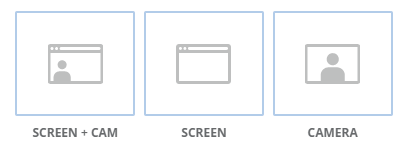
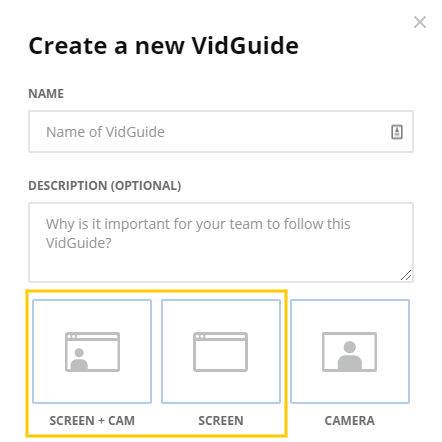
Next, you will need to select the recording type. This will determine what is captured in your VidGuide.
- The Screen option records your computer's entire screen.
- The Camera option records a video using your webcam only.
- The Screen + Camera option records both your screen and camera at the same time.
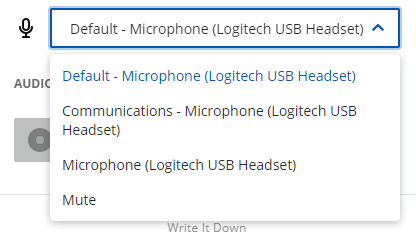
You will also notice the Audio Level bar which indicates whether your microphone has been picked up and is generating sound. If you have multiple cameras or microphones, you can use the dropdown menus to select another option.
When you are satisfied with the recording option you’ve selected, click on Start Recording.

Recording with Screen or Screen + Camera
If you have selected the Screen or Screen + Camera option, your browser will prompt you to select which part of the screen you would like to capture. By default, you will be sharing your audio unless you disable your microphone.
When you are satisfied with the recording option you’ve selected, click on Start Recording.
You will then be presented with the following options to choose what you want to share:
- The Entire Screen option records everything visible on your screen.
- The Window option records from a specific window only.
- The Chrome Tab option records from a specific Chrome Tab only.
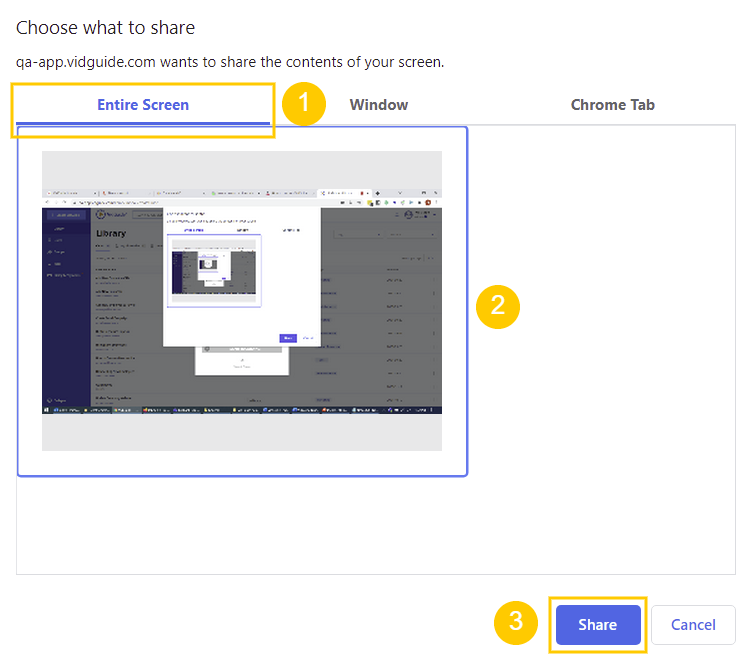
Click on the specific screen, window, or tab you want to record and click Share. You will then see a notification confirming that you are sharing the selected option. This can be ended at any time by clicking Stop Sharing.
Recording with Camera
The Camera option will allow you to record a live video with your webcam. Please note no screens will be captured during this recording.
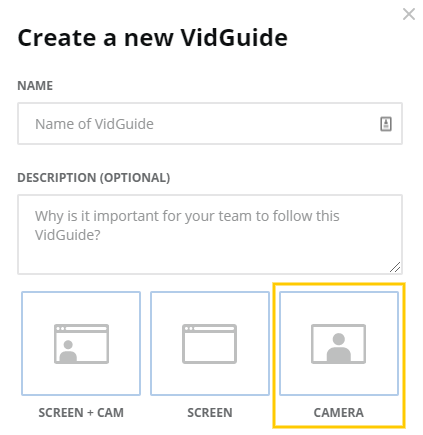
Click Start Recording and a 3-second countdown will appear before the recording begins.
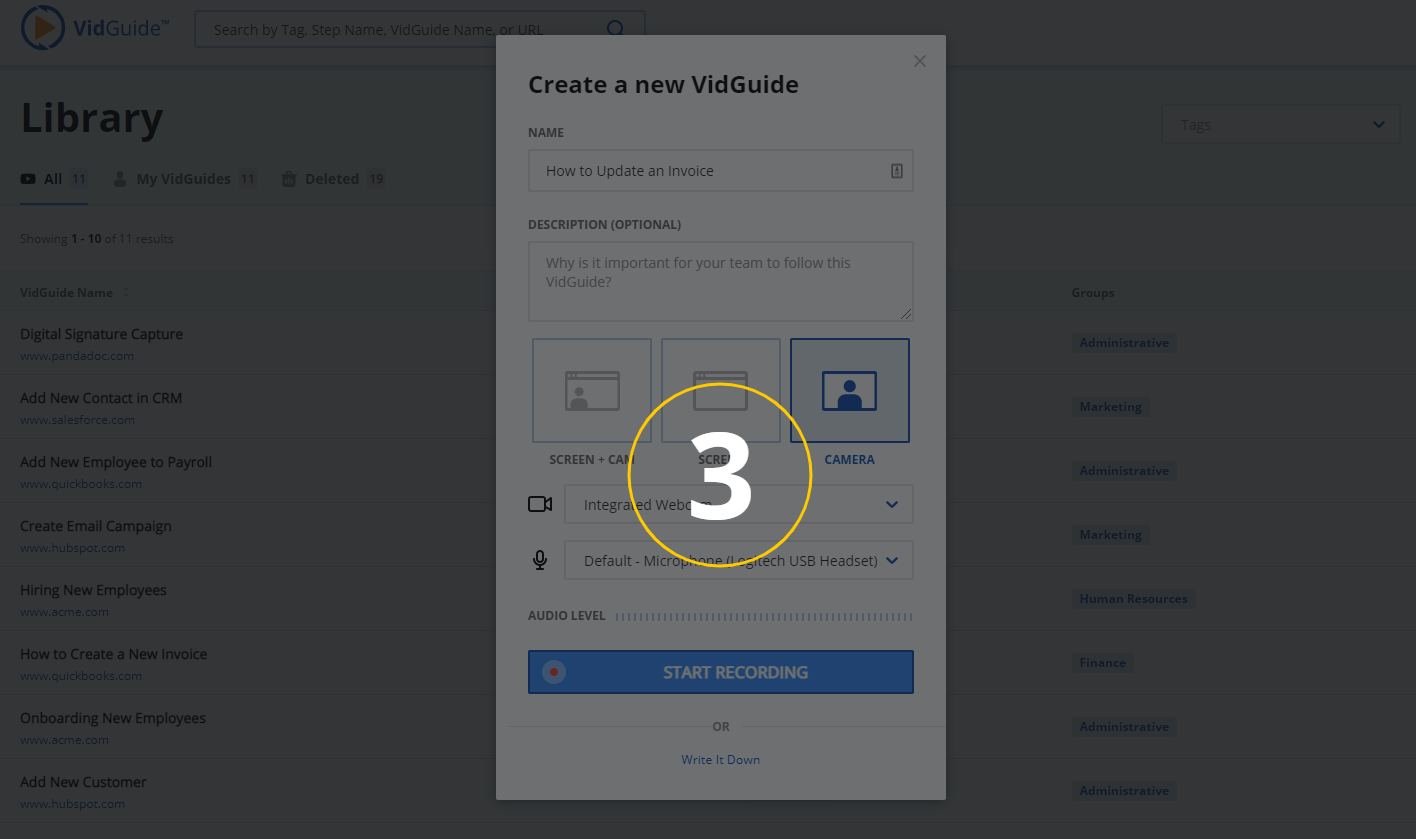
When you are done, hit the Stop button and your VidGuide will save automatically.