
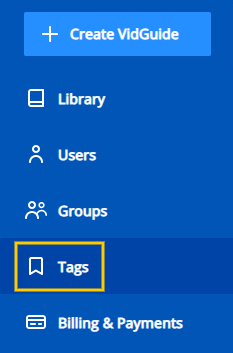
From the VidGuide™ navigation menu, click on Tags. This will take you to the tag management page.
Create Tags
To add a new tag, enter the tag name in the Create New Tag field and click the Create Tag button.


Edit Tags
Account administrators have the ability to edit any tag.
To edit a tag, click the Edit button with the pencil icon on the right side of the screen next to the tag you want to edit.

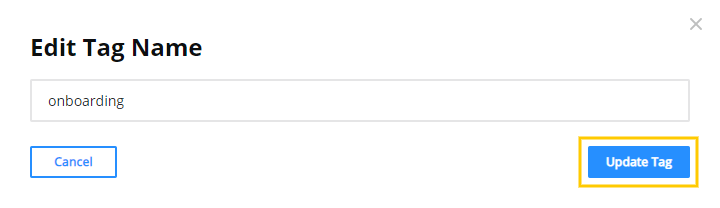
Make the desired changes to the tag name and click the Update Tag button to save your changes.
Delete Groups
Account administrators have the ability to delete any tag.
To delete a tag, click the Delete button with the trash bin icon on the right side of the screen next to the tag you want to delete.

You will be prompted to confirm that you want to delete the tag. To proceed with deleting the tag, click the Delete button. If you no longer wish to remove the tag, click the Cancel button to return to the tag management page.

Add Tag to a VidGuide
To add a tag to a VidGuide, click the Add VidGuide button on the right side of the screen next to the tag you want to add to a VidGuide.

Search and select the VidGuide from the drop-down list and click Add VidGuide to add that tag to the selected VidGuide. Repeat this process for all VidGuides you want to add to this tag.

Remove Tag from a VidGuide
To remove a tag from a VidGuide, click the drop-down arrow to expand the list of VidGuides associated with the tag.
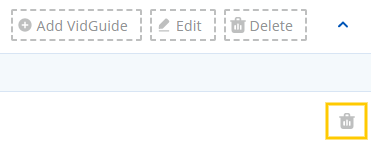
Click the trash bin icon on the right side of the screen to remove the tag from that VidGuide. This will immediately remove the tag from the selected VidGuide.